- The Ultimate Platform for Streamer Betting and Esports Duels
Valorant Not Opening: How to Fix Launch Problems, Stuttering, Lag, and Crashes
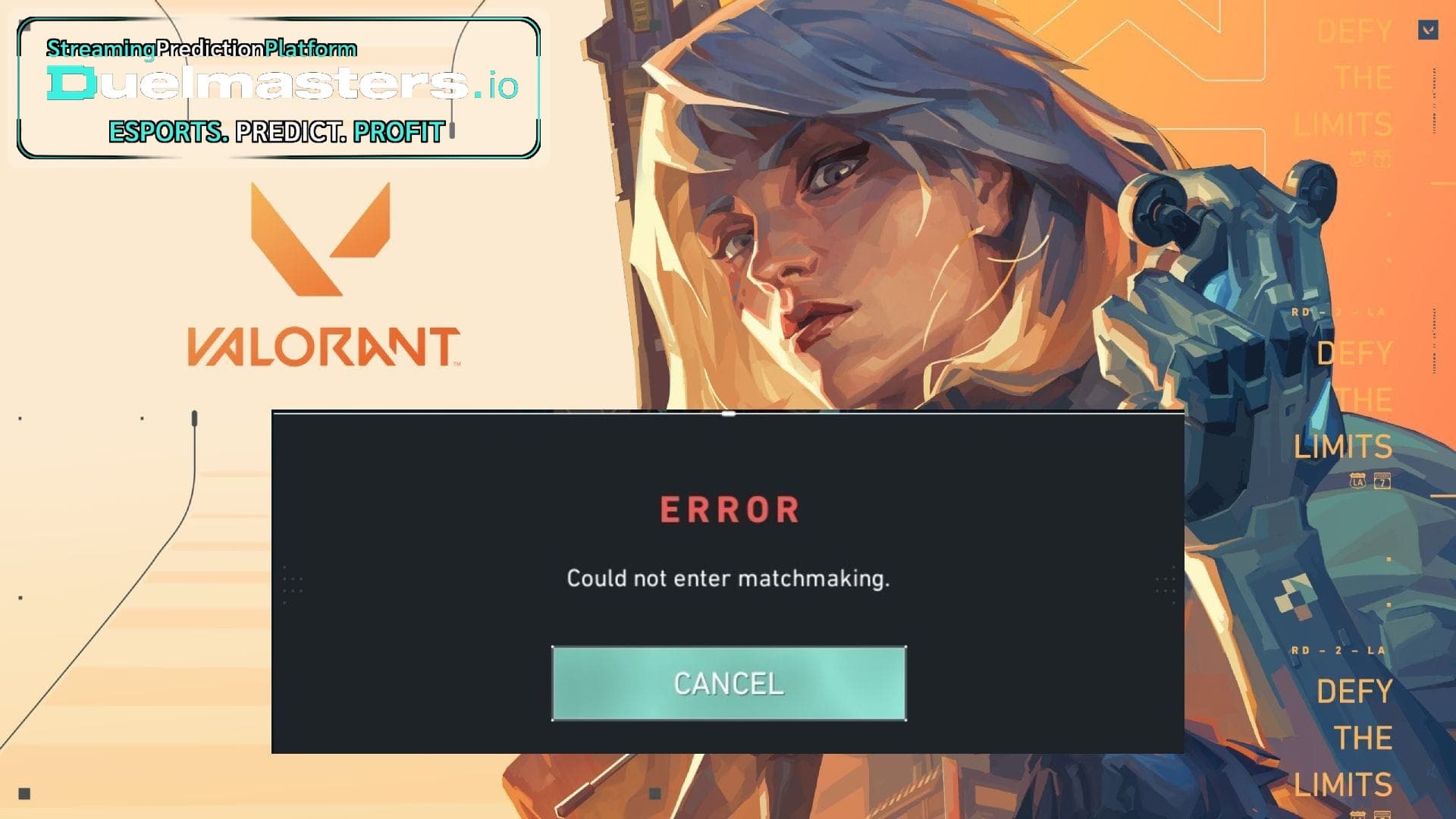
Valorant not opening can be one of the most frustrating PC gaming problems because the issue can start before you even reach the main menu. Sometimes the Riot Client opens but Valorant does not launch. Sometimes the game starts, shows a black screen, then closes. Sometimes Vanguard blocks the launch. In other cases, the game opens but immediately feels unstable, with stutters, lag spikes, or sudden freezes during matches.
The key is not to treat every issue as the same problem. Valorant not launching is usually connected to Riot Client, Vanguard, Windows permissions, corrupted files, firewall rules, or background software. Valorant lagging is usually connected to performance, network stability, CPU/GPU load, drivers, or system settings. Once you separate the symptoms, it becomes much easier to fix the game.
Article content:
- Start With the Launch Problem First
- Clear Local Cache and Repair Game Files
- Check Firewall and Antivirus Blocks
- Run a Clean Boot to Find Conflicts
- How to Fix Valorant Stuttering
- Valorant Lagging on Good PC
- Valorant Lag Spikes and Network Issues
- What to Do After Updates
- Final Thoughts
- FAQ
Start With the Launch Problem First
If Valorant is not opening at all, do not begin by changing graphics settings. Graphics settings only matter after the game launches. Start with the basic launch chain: Riot Client, Valorant, Vanguard, Windows, and your security software.
Restart your PC first. Vanguard runs at a deep system level, and a simple restart can reload the anti-cheat properly. Then open Riot Client as normal and try launching Valorant again. Avoid opening the game from an old shortcut if you recently moved files or updated the client.
If the game still will not open, check whether Vanguard is running. Riot’s support materials point players with VAN-related errors toward Vanguard troubleshooting, and Vanguard can block launch if required Windows security conditions are not met. Riot also notes that certain Vanguard errors may require Windows security features to be enabled, depending on the error code.
Duelmasters – The Ultimate Platform for Streamer Betting and Esports Duels
Clear Local Cache and Repair Game Files
A common way to fix Valorant launch issues is clearing local cached game data and repairing the installation. Riot’s launch troubleshooting guidance includes deleting local AppData game folders, performing a clean boot, and adding firewall exceptions when launch errors continue.
This helps because corrupted temporary files can stop the game from opening cleanly. Cache files can break after a patch, failed update, crash, or interrupted installation. If Valorant not launching started after an update, damaged local files are one of the first things worth checking.
Open the Riot Client and make sure the game is fully updated. If repair options are available, use them before reinstalling. A full reinstall should be a later step, not the first move, because many launch issues can be fixed without downloading the whole game again.
Duelmasters – Watch Streamers, Predict Results, and Win Real Rewards Instantly
Check Firewall and Antivirus Blocks
Valorant depends on Riot Client, the game executable, and Vanguard. If your firewall or antivirus blocks one part of that chain, the game may fail to start or disconnect unexpectedly. Riot’s firewall guidance specifically mentions allowing Valorant, Riot Client Services, and Vanguard-related files through security software.
This is especially important if Valorant stopped opening after you installed a new antivirus, changed firewall settings, or updated Windows Security. Some security tools are aggressive and can block anti-cheat systems, game launchers, or network processes.
Add Riot Games, Valorant, Riot Client, and Vanguard to your trusted apps or exceptions list. Avoid disabling your entire security system permanently. The better approach is to create targeted exceptions for the required Riot files.
Duelmasters – Real-Money Esports Betting on Streamers
Run a Clean Boot to Find Conflicts
If the game still will not launch, background software may be the cause. A clean boot starts Windows with fewer third-party services and startup programs. This can reveal whether another app is interfering with Riot Client or Vanguard.
Common conflict sources include overlays, recording software, RGB tools, hardware monitoring apps, VPNs, old anti-cheat systems from other games, and aggressive optimization utilities. Discord overlay, GeForce Experience overlay, Xbox Game Bar, MSI Afterburner/RivaTuner, and similar tools can sometimes cause issues depending on driver and game versions.
A clean boot does not mean deleting everything. It simply helps you test whether Valorant opens when unnecessary background tools are not running.
How to Fix Valorant Stuttering
If the game opens but feels choppy, the next question is how to fix Valorant stuttering. Stuttering is different from low FPS. Low FPS is generally consistent. Stuttering appears as sudden frame-time spikes: the game feels smooth, then freezes for a fraction of a second.
Start by lowering unnecessary graphics settings. Valorant is designed to run on many PCs, but high refresh-rate gameplay is sensitive to frame pacing. Turn off or lower settings that create extra load, close background apps, and avoid recording gameplay while testing.
Update your GPU driver, but pay attention to timing. If Valorant started stuttering immediately after a new driver, the driver may be the problem. In that case, rolling back to the previous stable version can sometimes help.
Also check your FPS cap. An uncapped frame rate can create unstable CPU/GPU load. Capping FPS slightly above your monitor refresh rate or at a stable number your PC can hold may feel smoother than chasing the highest possible FPS.
Valorant Lagging on Good PC
Valorant lagging on good PC is common because strong hardware does not automatically guarantee stable performance. A good PC can still have bad frame pacing, driver conflicts, background load, overheating, unstable RAM settings, or network problems.
Check CPU and GPU temperatures while playing. If the system overheats, it may throttle performance. Make sure your RAM is running at the correct speed in BIOS. Close browser tabs, launchers, downloads, and streaming tools before playing.
If your FPS is high but the game still feels delayed, the issue may not be your PC performance. It may be network latency, packet loss, server routing, or input delay from display settings. Turn on Valorant’s performance stats so you can see FPS, frame time, ping, and packet loss instead of guessing.
Valorant Lag Spikes and Network Issues
Valorant lag spikes usually point to network instability. If players teleport, shots feel delayed, peeking feels inconsistent, or your ping jumps during rounds, graphics settings are not the main problem.
Use Ethernet instead of Wi-Fi if possible. If you must use Wi-Fi, use a stable 5 GHz connection, move closer to the router, and avoid playing while someone else is streaming or downloading large files. Restarting your router can help with temporary congestion, but persistent lag spikes may require checking your ISP route.
Riot’s network troubleshooting guidance focuses on connection quality, firewall behavior, and tools that can block or interfere with Valorant and Vanguard. If packet loss appears in-game, that is a strong sign that data is being dropped between your PC and the server.
What to Do After Updates
If Valorant not opening or Valorant lagging started after a patch, do not assume your PC suddenly became too weak. Updates can change game files, Vanguard behavior, Windows compatibility, drivers, shaders, or security interactions.
Restart the PC, update the Riot Client, check for Windows updates, repair game files, and review firewall exceptions. If many players report the same issue after the same patch, it may be a temporary bug that Riot needs to fix.
Final Thoughts
The best answer to how to fix Valorant is to diagnose the symptom first. If Valorant is not opening, focus on Riot Client, Vanguard, cache, firewall, Windows permissions, and background conflicts. If the game opens but feels bad, focus on FPS stability, drivers, temperatures, network quality, and packet loss.
Do not reinstall immediately unless simpler fixes fail. Restart, repair, clear cache, check Vanguard, add firewall exceptions, test a clean boot, and monitor performance stats. Most Valorant launch and lag problems come from a broken link in the system chain, not from one mysterious issue.
FAQ
Why is Valorant not opening?
Valorant may not open because of Riot Client issues, Vanguard problems, corrupted local files, firewall blocks, background software conflicts, or Windows security settings.
Why is Valorant not launching after an update?
A patch can corrupt cache files, change Vanguard behavior, trigger firewall blocks, or create compatibility issues. Restart your PC, repair the game, and check security exceptions.
How to fix Valorant quickly?
Restart your PC, update Riot Client, check Vanguard, repair game files, clear local cache, disable overlays, and add Riot/Valorant/Vanguard to firewall exceptions.
How to fix Valorant stuttering?
Lower unnecessary graphics settings, close background apps, cap FPS, update or roll back GPU drivers, check temperatures, and monitor frame time.
Why is Valorant lagging with high FPS?
High FPS does not guarantee smooth frame pacing. Background apps, unstable drivers, CPU spikes, network delay, or packet loss can still make the game feel laggy.
Why am I getting Valorant lag spikes?
Lag spikes usually come from network instability, Wi-Fi issues, packet loss, ISP routing, downloads, VPNs, or firewall interference.
Why is Valorant lagging on good PC?
A good PC can still lag because of overheating, background software, unstable drivers, RAM settings, overlays, or network problems.
Should I reinstall Valorant if it will not open?
Try easier fixes first: restart, repair, clear cache, check Vanguard, and add firewall exceptions. Reinstall only if those steps fail.
Can antivirus stop Valorant from opening?
Yes. Antivirus or firewall tools can block Valorant, Riot Client, or Vanguard. Add trusted exceptions instead of disabling protection completely.
Is Vanguard required for Valorant?
Yes. Valorant uses Riot Vanguard, and the game may not launch properly if Vanguard is not running or is blocked.