
 - The Ultimate Platform for Streamer Betting and Esports Duels
How to Fix Fortnite Lag: FPS Drops, High Ping, Crashes, and PC Stutter
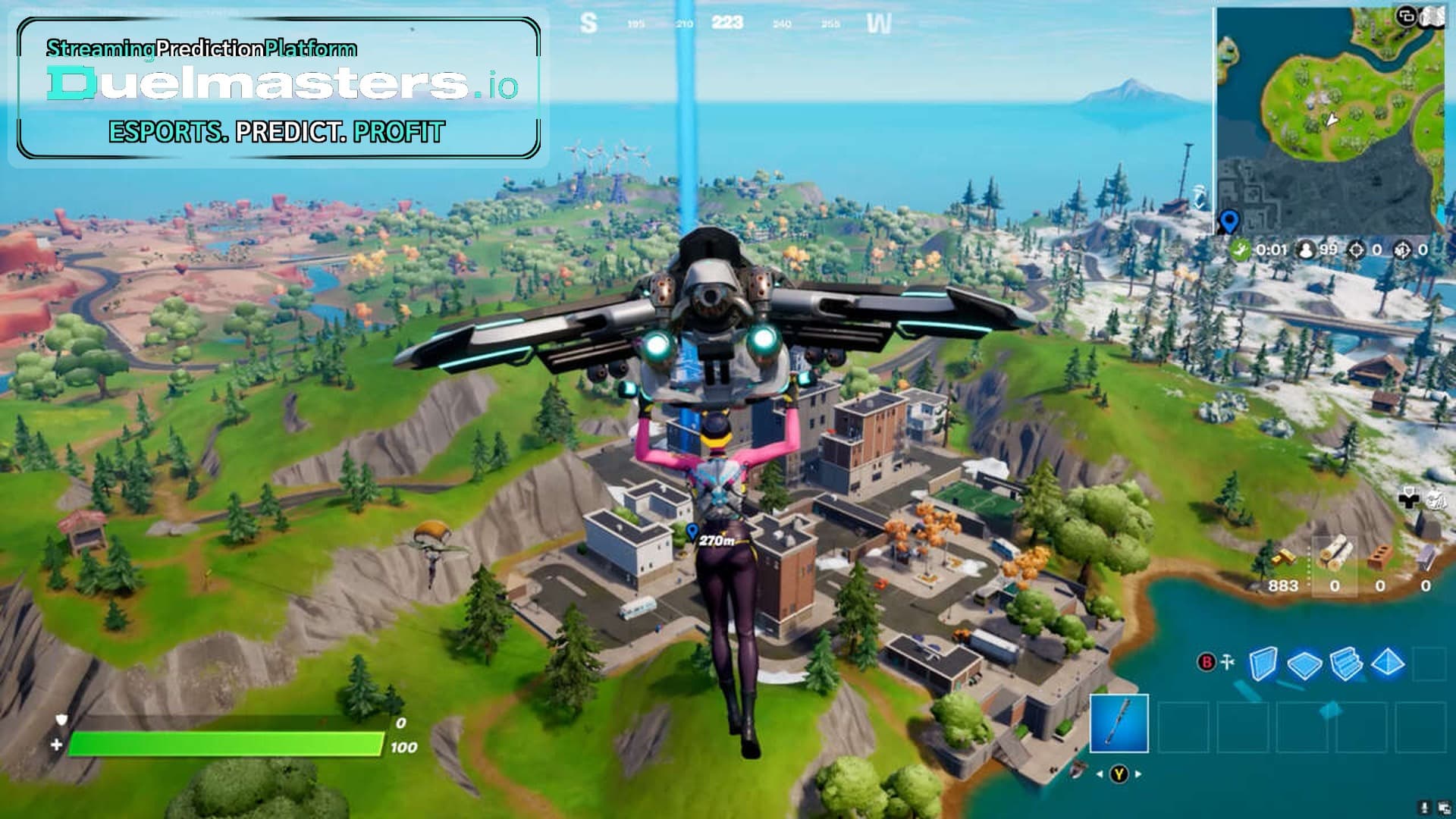
If you want to know how to fix Fortnite lag, the first step is understanding what kind of lag you are dealing with. Fortnite players often use “lag” to describe several different problems: low FPS, stuttering, high ping, packet loss, delayed building, input delay, random freezes, or crashes. These issues feel similar during a match, but they do not have the same cause.
A player with unstable FPS needs different fixes from someone with 90 ms ping. A PC that crashes after loading into a match needs different troubleshooting from a system that only stutters during fights. The fastest way to fix Fortnite is to separate performance lag from connection lag and then apply the right solution.
Article content:
- Why Is Fortnite So Laggy?
- Start With the Simple Fixes
- How to Fix Fortnite Lag on PC
- PUBG-Style Stutter? Check Storage and Memory
- How to Fix Fortnite Ping
- How to Fix Fortnite Crashes
- Fortnite Lags After Latest Update
- Console and Mobile Fixes
- Best Settings Mindset
- FAQ
Why Is Fortnite So Laggy?
Why is Fortnite So Laggy? Usually, it comes down to one of four areas: hardware load, graphics settings, network connection, or a recent update. Fortnite is constantly evolving with new seasons, map changes, cosmetics, Unreal Engine features, lighting changes, and gameplay systems. A setup that felt smooth last month can suddenly feel worse after a patch.
On PC, Fortnite lags when your CPU, GPU, RAM, storage, or drivers cannot keep frame times stable. On console, lag can come from cache issues, overheating, storage problems, or unstable internet. On Wi-Fi, even a powerful gaming PC can feel delayed if packet loss or ping spikes hit during fights.
The goal is not only to get a higher FPS number. The goal is stable performance.
Duelmasters – The Ultimate Platform for Streamer Betting and Esports Duels
Start With the Simple Fixes
Before changing advanced settings, restart Fortnite, restart your device, and close background apps. Browsers, Discord, recording software, launchers, RGB tools, VPNs, and update services can all consume resources. If Fortnite is running while another app is downloading files or recording gameplay, performance can drop quickly.
Next, verify your game files in the Epic Games Launcher. This is especially useful when Fortnite lags after latest update because a patch can sometimes leave damaged, missing, or mismatched files. Verifying files is a safe first step before reinstalling the whole game.
Also check the Epic Games server status. If there is a known outage or server issue, your settings will not fix the problem. In that case, the lag may be temporary and connected to the service rather than your device.
Duelmasters – Watch Streamers, Predict Results, and Win Real Rewards Instantly
How to Fix Fortnite Lag on PC
For Fortnite lagging on PC, start with graphics settings. Lower shadows, effects, post-processing, and view distance. These settings can hit performance hard, especially during busy endgames with builds, effects, explosions, and multiple players nearby.
Use Fullscreen mode if Borderless Windowed adds input delay or inconsistent performance. Cap your FPS to a number your PC can hold consistently. If your system jumps between 180 and 240 FPS, a stable 165 FPS cap may feel better than an uncapped frame rate with spikes.
Performance Mode can help players who want higher FPS and lower system load. It reduces visual complexity and can make Fortnite smoother on low-end PCs and even some competitive setups. If you use Performance Mode, make sure your settings are not locked by a read-only configuration file.
Keep GPU drivers updated, but be careful after new driver releases. If Fortnite starts stuttering immediately after a driver update, rolling back to the previous stable version can sometimes help.
Duelmasters – Real-Money Esports Betting on Streamers
PUBG-Style Stutter? Check Storage and Memory
Fortnite streams assets constantly: buildings, textures, skins, weapons, sounds, and UI elements. If the game is installed on a slow drive, or if your system is low on memory, you may experience stutters that look like lag.
Install Fortnite on an SSD if possible. Keep enough free storage space for updates and cache. Close heavy apps before playing. If your PC has 8 GB of RAM, avoid keeping Chrome, editing software, or other games open in the background.
For smoother performance, also check Windows power settings. Use a performance-focused power plan while gaming and make sure Fortnite is using the dedicated GPU rather than integrated graphics.
How to Fix Fortnite Ping
If your FPS is stable but builds place late, edits feel delayed, or opponents appear to teleport, the issue is probably network-related. In that case, learning how to fix fortnite ping matters more than changing graphics settings.
Start by using a wired Ethernet connection instead of Wi-Fi. If you must use Wi-Fi, connect to a 5 GHz network, move closer to the router, and avoid playing while someone else is streaming, downloading, or uploading large files.
Choose the correct matchmaking region in Fortnite settings. Auto usually works, but if it sends you to a region with higher latency, manually select the closest server. Turn on network stats in Fortnite so you can see ping and packet loss during a match.
High ping means your connection to the server is slow. Packet loss means data is being dropped between your device and the server. Packet loss is often worse than high ping because it can cause rubber-banding, missed builds, and delayed shots.
Avoid VPNs unless you are testing a specific routing issue. Most VPNs increase latency because they add an extra path between you and Fortnite’s servers.
How to Fix Fortnite Crashes
Lag and crashes are different problems, but players often experience both after updates. If you want to know how to fix fortnite crashes, start with file verification, driver updates, and removing unstable overlays.
Disable third-party overlays from Discord, GeForce Experience, Xbox Game Bar, Steam, or recording software. Overlays can conflict with Fortnite, especially after updates. Also make sure Windows is updated and your GPU driver is stable.
If Fortnite crashes on DirectX 12, try switching to Performance Mode or DirectX 11. DirectX 12 can offer strong performance on some systems, but it may create instability on others depending on drivers, hardware, and game version.
For players searching how to fix fortnite crashing on pc, another important step is clearing Fortnite’s local configuration folder or resetting settings. Corrupted local settings can cause startup problems, crashes, or strange performance behavior.
Fortnite Lags After Latest Update
When Fortnite lags after latest update, do not immediately assume your PC is broken. Updates can change performance, rebuild shaders, reset settings, add new map assets, or introduce temporary bugs. Play one or two matches to let the game settle, then verify files if the issue continues.
Check whether your graphics settings changed after the update. Sometimes settings reset or new options appear. Reapply your competitive settings manually.
If many players report the same issue, it may be a patch-side problem. In that case, the best short-term fix is to lower heavy settings, avoid unstable rendering modes, keep drivers stable, and wait for Epic to patch the issue.
Console and Mobile Fixes
On console, clear cache, restart the device, keep Fortnite updated, and make sure the console has enough storage space. Overheating can also reduce performance, so keep the console well ventilated.
On mobile or cloud-based setups, lag is often tied to connection quality, device heat, or streaming latency. Use strong Wi-Fi, close background apps, lower visual settings when available, and avoid playing while the device is hot or charging under heavy load.
Best Settings Mindset
The best settings are not always the highest settings. Competitive Fortnite rewards clarity, stable FPS, and low input delay. If your game looks beautiful but stutters during fights, the settings are not good for winning.
Lower visual effects, keep FPS stable, monitor ping, and avoid unnecessary background load. When Fortnite feels smooth, edits, builds, aim, and movement all become easier.
FAQ
How do I fix Fortnite lag quickly?
Restart the game, close background apps, lower heavy graphics settings, verify game files, cap FPS, and check your ping and packet loss.
Why is Fortnite so laggy on my PC?
Fortnite may be laggy because of high graphics settings, unstable drivers, background apps, slow storage, overheating, or network issues.
How do I fix Fortnite ping?
Use Ethernet, choose the closest matchmaking region, avoid VPNs, stop downloads, reduce Wi-Fi congestion, and check packet loss in Fortnite’s network stats.
Why does Fortnite lag after an update?
Updates can reset settings, rebuild shaders, add heavier assets, introduce bugs, or create temporary server load. Verify files and recheck graphics settings.
How do I fix Fortnite crashing on PC?
Verify files, update or roll back GPU drivers, disable overlays, try DirectX 11 or Performance Mode, and reset corrupted local settings if needed.
Is Performance Mode good for Fortnite lag?
Yes. Performance Mode can reduce system load and improve FPS, especially on lower-end PCs or competitive setups.
Why does Fortnite lag with good internet?
The issue may be FPS stutter instead of network lag. Check frame rate, frame time, CPU/GPU usage, and background apps.
Why does Fortnite show packet loss?
Packet loss means data is being lost between your device and the server. It can come from Wi-Fi problems, ISP routing, congestion, or unstable network hardware.
Should I reinstall Fortnite to fix lag?
Reinstalling can help, but verify game files first. Most lag issues can be fixed without a full reinstall.
What is the best way to stop Fortnite lags during fights?
Lower effects and shadows, cap FPS, close background apps, use an SSD, and make sure your ping and packet loss are stable before playing ranked or tournaments.