- The Ultimate Platform for Streamer Betting and Esports Duels
Best Nvidia Settings for EA FC 26
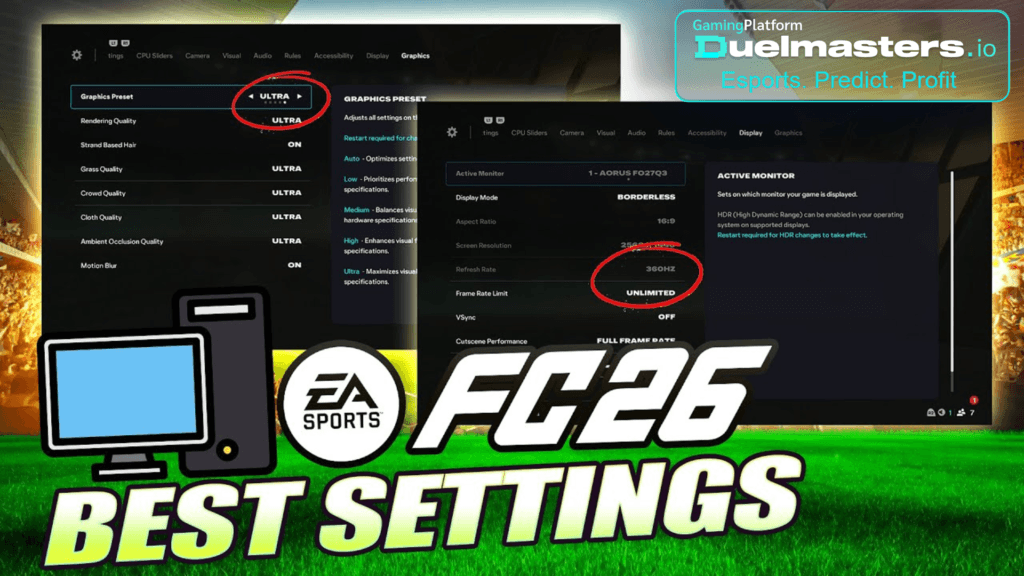
Best Nvidia Settings for EA FC 26 are the foundation for smooth gameplay, responsive input, and stable streaming. EA Sports FC 26 on PC targets 60 FPS at 1080p with a GTX 1050 Ti as minimum and a GTX 1660 as recommended, paired with CPUs like the i5-6600K or i7-6700 and 8–12 GB RAM.
EA’s own PC deep dive for FC 26 shows that the game now offers more frame-rate caps, dynamic resolution, render scale and detailed graphics presets.
This means you get decent tools in-game, but Nvidia Control Panel tuning is still crucial if you want consistent FPS in Weekend League, Rivals, Clubs or while streaming.
Article content:
- Step 1: Check your PC and drivers
- Step 2: Set a solid baseline in EA FC 26 graphics menu
- Step 3: Configure Nvidia Control Panel for EA FC 26
- Step 4: Recommended presets by GPU tier
- Step 5: Tune Windows settings that affect FC 26
- Step 6: Test FC 26 performance the right way
- Using your optimized FC 26 setup with Duelmasters
- Quick reference: Best Nvidia settings for EA FC 26
Step 1: Check your PC and drivers
Confirm you meet (or beat) the requirements
For a good PC experience with EA FC 26 you should aim at least for:
- CPU (minimum): Intel i5-6600K / Ryzen 5 1600
- CPU (recommended): Intel i7-6700 / Ryzen 7 2700X
- GPU (minimum): GTX 1050 Ti (4 GB)
- GPU (recommended): GTX 1660 (6 GB)
- RAM: 8–12 GB
- Storage: 100 GB, SSD strongly recommended
If you are below this, no Nvidia tweaks will fully fix stutter.
Keep your Nvidia driver up to date
- Open GeForce Experience or the NVIDIA app.
- Install the latest Game Ready Driver that supports EA SPORTS FC 26.
- Restart your PC after installing.
New drivers often include optimizations and bug fixes for FC 25/26 era titles and can remove micro-stutters on their own.
Duelmasters – The Ultimate Platform for Streamer Betting and Esports Duels
Step 2: Set a solid baseline in EA FC 26 graphics menu
Below are in-game settings that work well for most Nvidia GPUs and are aligned with EA’s own PC tuning guide.
Adjust only after you get a stable base.
Display and frame-rate options
In Settings → Display / Video:
- Display mode:
- Borderless if you stream and alt-tab a lot.
- Fullscreen if you want the absolute lowest input lag.
- Resolution: Native monitor resolution (usually 1920×1080 or 2560×1440).
- Refresh rate: Match your monitor (60 / 120 / 144 / 240 Hz).
- Frame-rate limit in-game:
- Start with 60 FPS on low-end GPUs (GTX 1050 Ti).
- Start with 90 FPS on mid-range / high-end GPUs (1660, 3060, 3070 etc.).
- V-Sync in-game: Off (we will control sync from Nvidia Control Panel).
EA added more frame caps (144, 165, 240) and fractional V-Sync modes, but for competitive play it is usually better to cap FPS in Nvidia Control Panel and keep in-game V-Sync off.
Resolution scale and dynamic resolution
Still in the video settings:
- Render scale / Render resolution:
- 100% for most systems.
- 80–90% if you need more FPS on a weaker GPU.
- Dynamic resolution scaling:
- Off if your FPS is already stable.
- On with a target FPS equal to your frame cap (60 or 90) if you have small drops.
Render scale and dynamic scaling are powerful because FC 26 can now automatically lower resolution to hold a target frame-rate.
Core graphics quality options
For competitive play and minimal latency, use something like:
- Graphics preset: Medium (or Low on old GPUs).
- Rendering quality: High on mid/high GPUs, Medium on low-end.
- Strand-based hair: Off (GPU-heavy, small gameplay impact).
- Cloth quality: Medium or High.
- Shadows / Ambient occlusion / Background shading: Medium.
- Grass quality: Medium.
- Crowd quality: Medium or High; turn to Low if online matches stutter.
- Motion blur: Off.
- Film grain / extra post-effects: Off.
This keeps the picture clean but prioritizes responsiveness.
Step 3: Configure Nvidia Control Panel for EA FC 26
Now move to Nvidia Control Panel → Manage 3D settings → Program Settings and add EA SPORTS FC 26. If it does not appear, click Add and select the FC26 .exe manually.
Use the following best-practice values, adapted from proven FC 25 stutter-fix guides that tested different Nvidia options on football titles.
Key Nvidia options for FC 26
For the EA FC 26 profile:
- Low Latency Mode: Ultra
Reduces the number of frames queued by the GPU and helps with input delay in online matches. - Max Frame Rate:
- 60 FPS cap on lower-end GPUs / 60 Hz monitors.
- 90 FPS cap on most 144 Hz monitors for very stable gameplay.
- If you truly have zero stutter, you can test 120 FPS, but for football games many users report smoother feeling at 60–90 FPS with stable pacing.
- Monitor Technology:
- G-Sync Compatible if your monitor supports it.
- Otherwise leave default.
- Preferred Refresh Rate: Application-controlled
- Power Management Mode: Prefer maximum performance
- Prevents the GPU from downclocking during menus and replays.
- Vertical Sync: Off
- Combined with an FPS cap, this usually gives the best latency. If you are sensitive to tearing, you can test V-Sync On + frame cap slightly below refresh rate.
- Anisotropic Filtering: Application-controlled (we tune in-game).
- Texture filtering – Quality: High performance
- Texture filtering – Anisotropic sample optimization: On
- Texture filtering – Negative LOD bias: Clamp
- OpenGL rendering GPU: Your main dedicated GPU.
- Triple buffering: Off.
These settings mirror what community testing for FC 25 found as the most stable profile for stopping micro-stutter and input delay, and the FC 26 engine builds on the same foundation.
Duelmasters – Watch Streamers, Predict Results, and Win Real Rewards Instantly
Step 4: Recommended presets by GPU tier
1. Entry-level: GTX 1050 Ti / similar
Goal: stable 60 FPS at 1080p.
- In-game:
- Resolution: 1920×1080.
- Graphics preset: Low or custom Low/Medium.
- Render scale: 90–100%.
- Crowd: Low.
- Motion blur, film grain: Off.
- Nvidia Control Panel:
- Low latency mode: Ultra.
- Max frame rate: 60 FPS.
- Power management: Prefer maximum performance.
If you still dip below 60 FPS, drop render scale to 80% and keep textures at Low/Medium.
2. Mid-range: GTX 1660 / RTX 2060
Goal: very smooth 60–90 FPS at 1080p.
- In-game:
- Graphics preset: Medium.
- Render scale: 100%.
- Crowd: Medium.
- Grass: Medium/High.
- Nvidia Control Panel:
- Max frame rate: 90 FPS.
- Low latency mode: Ultra.
- Texture filtering: High performance.
For online competitive play (Rivals, FUT Champs), many players find 90 FPS to be a sweet spot between animation smoothness and stable frame pacing.
3. High-end: RTX 3060 / 3070 / 4070 and above
Goal: high refresh gameplay with minimal latency.
- In-game:
- Resolution: 1080p or 1440p.
- Graphics preset: High (turn off ray-tracing if input feels heavy).
- Render scale: 100%.
- Crowd and grass: High.
- Nvidia Control Panel:
- Max frame rate: 120 FPS (or 144 capped to 141).
- Low latency mode: Ultra.
- G-Sync: On (if supported).
- Power management: Prefer maximum performance.
If FC 26 shares the same stutter pattern as FC 25 on your system, test lowering the cap from 120 to 90 while keeping other settings identical and compare match-feeling in online modes.
Step 5: Tune Windows settings that affect FC 26
PC football games are sensitive to background processes and OS features. A few simple changes (taken from FC 25 stutter-fix and general FPS guides) can help.
Windows Gaming features
- Game Mode:
- Try Off if you notice stutter; some players report smoother FC 25/26 with it disabled.
- Try Off if you notice stutter; some players report smoother FC 25/26 with it disabled.
- Graphics settings → Default graphics settings:
- Hardware-accelerated GPU scheduling: On (if available).
- Variable refresh rate: On (for VRR/G-Sync compatible displays).
- Optimizations for windowed games: On.
Background apps and overlays
- Disable unnecessary overlays: Discord in-game overlay, Nvidia overlay, Xbox Game Bar recording if you do not use it.
- Close browsers with many tabs before FUT Champs or Rivals.
- Keep only OBS/streaming tools and essential chat open while playing.
Duelmasters – Real-Money Esports Betting on Streamers
Step 6: Test FC 26 performance the right way
Test both offline and online
- First, test in Kick-Off / Skill Games to confirm your baseline FPS and lack of micro-stutter.
- Then test in online modes (Ultimate Team, Clubs) because networking and server sync can expose different issues than offline. FUTFC
How to evaluate your Nvidia setup
- Look for constant frame-time, not just high FPS numbers.
- Check for:
- Delayed player switching.
- Heavy first touches or unresponsive dribbling.
- Stutters during corners, cut-scenes or camera changes.
If you feel input delay:
- Reduce your FPS cap (e.g., 120 → 90, or 90 → 60).
- Make sure V-Sync is off in both FC 26 and Nvidia Control Panel.
- Lower crowd and background detail before touching textures or resolution.
Using your optimized FC 26 setup with Duelmasters
Once you lock in the best Nvidia settings for EA FC 26, you can use that stable performance to stream and play with real stakes on Duelmasters.
Duelmasters is a creator-driven esports betting platform where viewers back streamers and streamers monetize challenges across titles like EA FC, Fortnite and more, with transparent rules and instant payouts. Viewers back outcomes in skill-based events, and results are verified by the community.
How Duelmasters works with FC 26 streams
The updated Duelmasters model is built around Streams With Real Stakes:
- Creators set challenges, viewers back outcomes.
- Any Twitch or Kick streamer can launch permissionless, on-stream challenges for FC 26: connect the channel link, describe the challenge (for example, “win 3 games in Division Rivals in 45 minutes” or “score 4 goals with your striker”), set the start time and go live.
- Fans back real outcomes instead of abstract odds, and partners help grow the network of creators.
Inside the platform:
- As a streamer, you launch challenges, convert skill into payouts and grow your channel with backed runs.
- As a viewer, you support your favorite streamer’s outcomes, watch live, stake and collect rewards when your side wins.
- As a referrer, you invite streamers to host challenges and earn 2.5% of every prize pool from all their future events.
Duelmasters reports over three years of payouts with more than $1,857,200 distributed so far and gives streamers a 7.5% share of the prize pool on each challenge, settled instantly once the community verifies results.
A stable FC 26 PC setup with optimized Nvidia settings is exactly what you need to run these live challenges without frame drops, audio desync or visible input lag on stream.
Duelmasters – Watch Streamers, Predict Results, and Win Real Rewards Instantly
Quick reference: Best Nvidia settings for EA FC 26
Core checklist
- Up-to-date Nvidia Game Ready Driver installed.
- In-game V-Sync off, FPS capped to 60–90 for competitive play.
- Graphics preset Medium–High, motion blur and heavy post-effects off.
- Nvidia Control Panel profile for EA FC 26 with:
- Low latency mode: Ultra
- Max frame rate: 60 or 90 FPS
- Power management: Prefer maximum performance
- Vertical sync: Off
- Texture filtering quality: High performance
- G-Sync enabled if supported
When to change things
- If you see stutters: lower FPS cap and crowds first.
- If image is blurry: increase render scale back to 100% or reduce dynamic scaling.
- If you stream: prefer borderless or fullscreen with a fixed FPS cap to keep OBS/encoding stable.
Set these Best Nvidia Settings for EA FC 26 once, test them both offline and in competitive modes, and then focus your energy where it matters more: improving gameplay, building your FC 26 audience, and, if you want to add an extra layer of excitement, hosting your own real-stakes challenges on Duelmasters.